When we added support for animated Gaussian splats to STAGEit, it raised an obvious question: could we create our own?
STAGEit Optimiser is our internal R&D tool, which we made available for free after finding that many of the tools we were building for ourselves could also be useful to the wider spatial development community.
Our experiments with animated splats have now made their way into the Optimiser, with a new alpha tool for turning ordinary video into an animated Gaussian splat sequence.
The underlying splats are generated using Apple’s SHARP technology. We then process the individual frames, optimise them and package them into an animated sequence that can be played back in STAGEit.
SHARP is not bundled or distributed with STAGEit Optimiser. If it isn’t already installed on the machine, it is downloaded separately when the feature is used. Apple’s applicable licence information is also provided within the app.
The important word here is alpha.
Results vary considerably depending on the source footage and subject. But after a lot of experimentation, we’re beginning to understand where it works well - and where it doesn’t.
This isn’t a room scanner
If you want to walk around your house with a camera and turn the whole thing into a clean 3D Gaussian splat, this isn’t the tool for that.
We’ve had much better results with close-up subjects that can be clearly isolated from their surroundings.
People have worked well. Animals have worked well. Smaller objects can work particularly well.
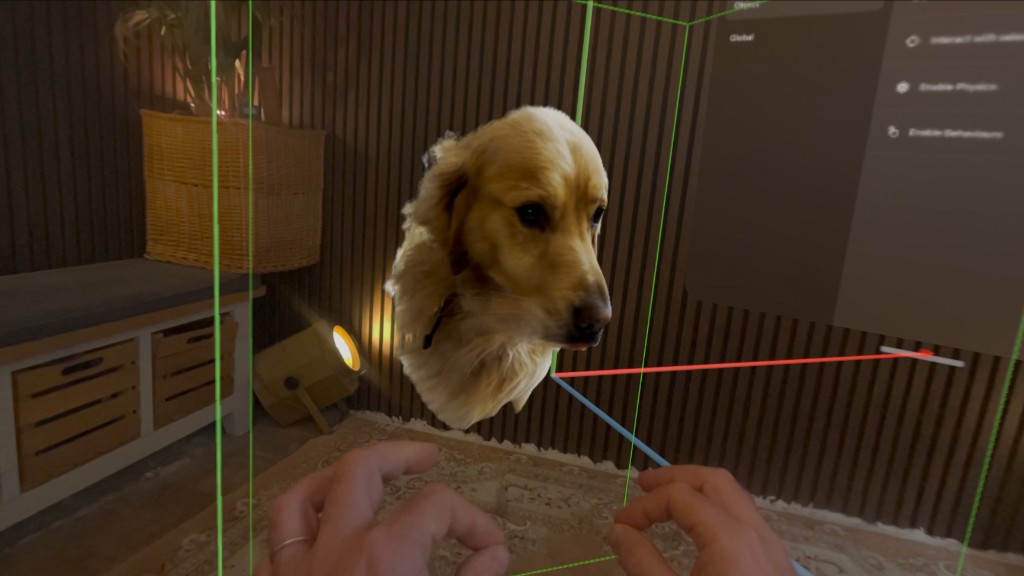
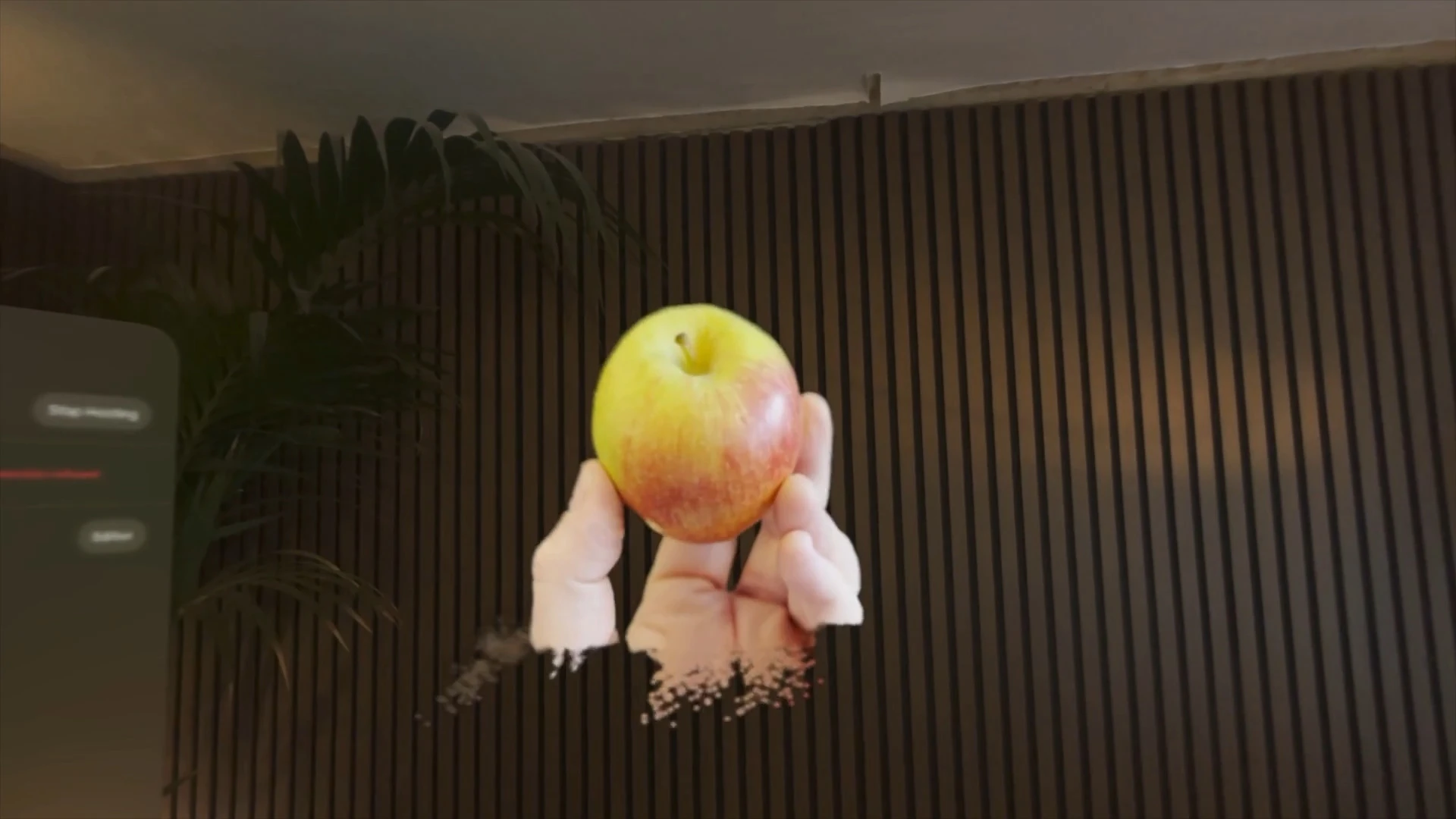
The examples in our current tests include a person, Merlin the Golden Retriever and an apple.
SHARP will happily infer considerably more of the scene if you ask it to, but increasing the captured depth also increases the likelihood of unwanted background geometry and stray splats.
So a large part of getting a useful result is simply deciding what you actually want to capture.
From video to animated splat
The Optimiser starts with an ordinary video.
We recommend keeping the source to around 10 seconds or less. You can trim a clip inside the Optimiser, but if you’re starting with a long video, it’s better to cut it down before importing it.
You can also crop the frame so the Optimiser only processes the area you’re interested in.
For footage containing a person, People Cutout isolates the subject from the rest of the image. There is also an optional Depth Cleanup pass, which we generally recommend using with people to help remove disconnected splats and unwanted material behind the subject.
You can then specify the depth you want the generated splat to contain.
As a rough guide, some of our own tests have used:
- 0.3m - the apple
- 0.8m - Merlin, our Golden Retriever
- 1.0m - the person in our example
These aren’t magic numbers. They’re simply useful examples of the principle: the smaller and more isolated the subject, the less depth you generally need.
Increasing the depth gives SHARP more of the scene to reconstruct, but it also makes unwanted background splats more likely.
Test at 5fps first
Generating an animated splat isn’t instant.
Depending on the footage, settings and machine, a full sequence can take 30-60 minutes to process.
Our strongest recommendation is therefore: don’t start by rendering the final version.
Generate a test at 5 frames per second first.
That is usually enough to tell whether the crop, subject isolation and depth are working without waiting for a full render.
Once we’re happy with those settings, we’ve found 24fps to be a good target for the final sequence.
The Optimiser supports up to 30fps, but the additional frames mean more processing, larger sequences and more work for the playback device. In our testing, 24fps has generally been the better compromise.
There is also a focal-length control. Unless you know the source footage was captured with a substantially different focal length from the default, we’d recommend leaving it alone.
Wireless transfer to STAGEit
There’s another addition to this version of the Optimiser that has made experimenting with all of this much easier.
We’ve added direct wireless transfer to STAGEit.
In STAGEit, open a scene and go to:
Settings → Network → Host
STAGEit Optimiser can then discover and connect to the device over the local network.
From there, an optimised USDZ or generated splat sequence can be transferred directly into STAGEit.
It sounds like a relatively small feature, but during development it has made a huge difference. Previously, testing an asset meant exporting it, AirDropping it to the device, reopening STAGEit and importing it before we could see the result.
Now we can iterate directly from the Optimiser.
What’s actually inside a .splatseq?
The animated sequences produced by STAGEit Optimiser use our .splatseq format.
A .splatseq is essentially an archive containing the individual Gaussian splat frames used to make up the animation.
It isn’t intended to lock the output to STAGEit.
If you have another application or your own workflow capable of dealing with sequences of Gaussian splats, you can simply rename the .splatseq file to .zip and access the individual frames inside it.
For straightforward playback of the animated sequence, STAGEit currently provides our implementation of the sequence player.
The free version of STAGEit Creator can be used to experiment with the workflow, including the networking functionality.
Still an experiment
We’re getting some genuinely interesting results from this, but we’re deliberately calling it alpha functionality.
There will be footage that works surprisingly well and footage that doesn’t. There are artefacts. There are limits to what can be inferred from a single video frame. And there is plenty more experimentation to do around filtering, optimisation and playback.
That’s also why we’ve put it into the Optimiser now rather than waiting until every edge case has been solved. Optimiser is where we experiment with this technology ourselves, and where we can share those experiments with the wider developer community.
STAGEit Optimiser is free to use, so if you’re interested in animated Gaussian splats, feel free to give it a try and see what you can make.