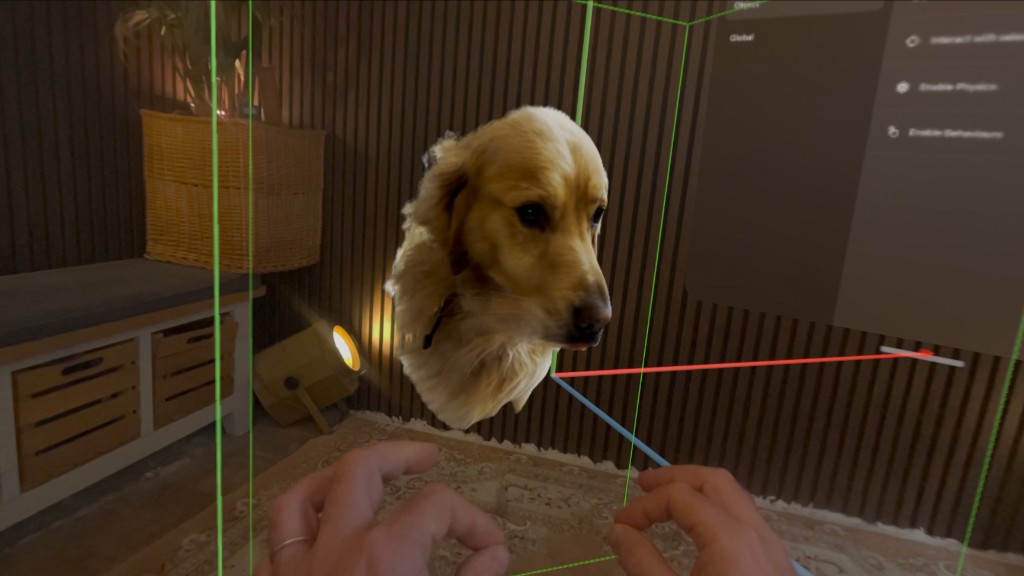
We’ve been experimenting with Meshy 7 to generate 3D models for Apple Vision Pro. The results can look fantastic, but there’s a catch: the models can contain millions of triangles, making them far too heavy to use on Vision Pro without optimisation.
This particular project gave us a good opportunity to refine our workflow. I was modelling a real bathroom before installing it, using AI-generated models of the actual fittings and then bringing everything into STAGEit Creator to preview the room at full scale on Apple Vision Pro.
From photographs to 3D models
The process starts with screenshots or reference images of the objects I want to model. Sometimes I’ll use ChatGPT to clean these up first and remove anything I don’t want Meshy to reproduce.
That matters more than you might expect. In one of the bathroom reference images I left the taps in, so Meshy faithfully generated those as part of the model too.
I then generate the models in Meshy 7 and texture them at 2K. For this kind of Vision Pro work, I’ve found 2K is generally enough. I’ll use 4K when the additional detail is worthwhile, but 8K is usually unnecessary.
The triangle problem
One of the reasons Meshy 7’s models look so good appears to be the amount of geometry it generates. We’re seeing models with millions of triangles, significantly more than we’d been getting from previous generations.
That’s great for detail, but not so great when you want to use those assets in a real-time experience on Apple Vision Pro.
I’ve experimented with Meshy’s own optimisation tools, but I’ve found that models with this much geometry can start to deform as the triangle count comes down.
So instead, I download the original model as a USDZ and optimise that separately.
This is where a tool we’d been building internally at Spatial Creative came in.
After spending many hours manually preparing USDZ models in Blender for Vision Pro, we’d started developing our own optimiser around that workflow. Rather than simply applying the same reduction across an entire model, it analyses the USDZ first and suggests changes. You can then decide which recommendations to apply before it creates a new optimised USDZ.
Blender still does the heavy lifting underneath.
Previewing the real bathroom at full scale
Once the models were optimised, I brought everything into STAGEit Creator.
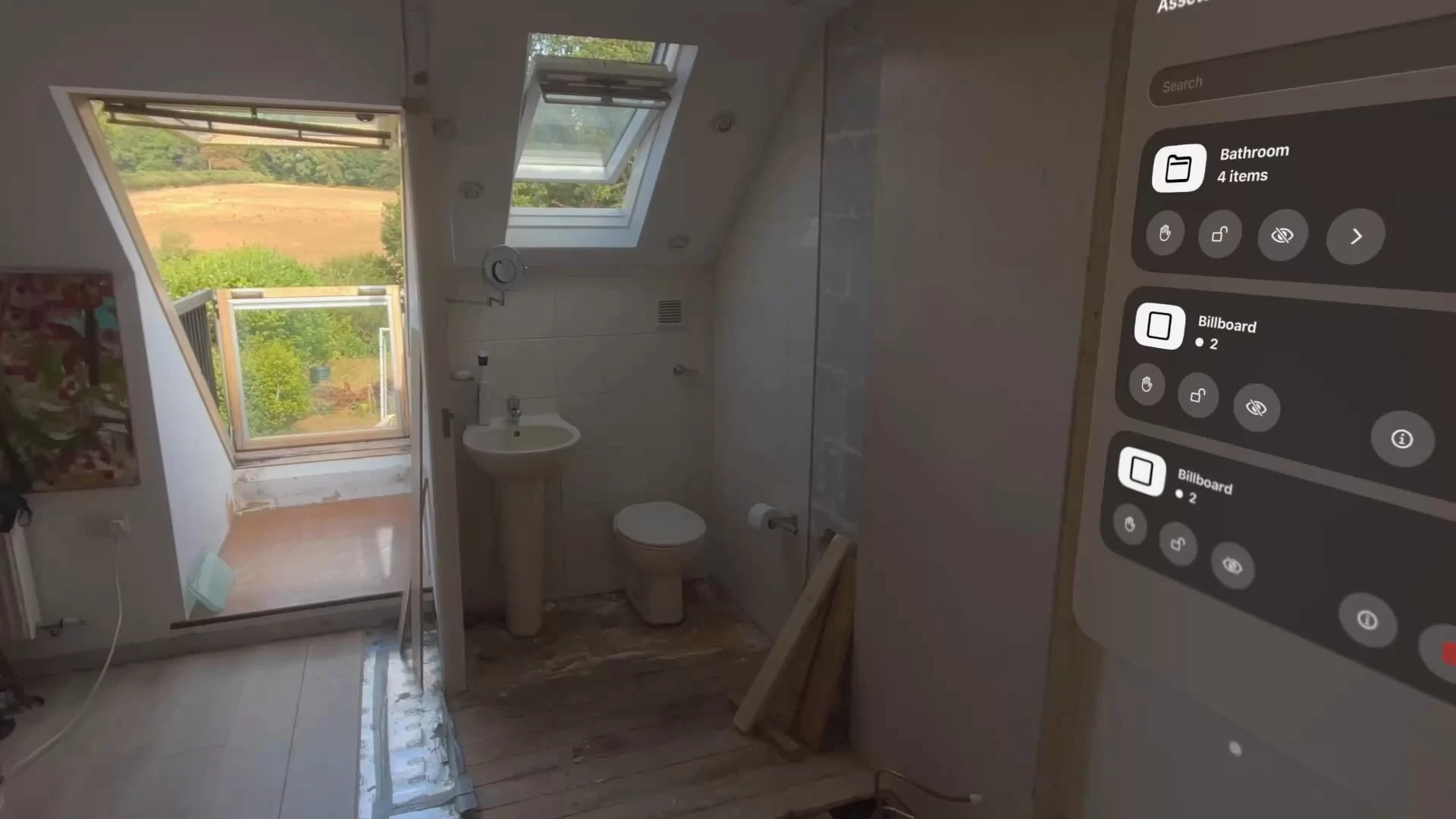
Because this wasn’t just a visualisation exercise, dimensions mattered. I added billboards containing the manufacturers’ specification sheets and dimension drawings directly into the STAGEit scene so I could size and position everything correctly.
Meshy can get surprisingly close on scale from a photograph, but obviously it isn’t going to give you millimetre accuracy.
With everything positioned, I could put on the Vision Pro and preview the proposed bathroom at 1:1 scale in the actual space.
That turned out to be genuinely useful. I was able to work out the positioning and install the pipework before the bath, shower and other fittings had even been ordered or arrived.
So the workflow ended up looking like this:
Screenshot → image cleanup → Meshy 7 → USDZ → optimisation → STAGEit Creator → 1:1 preview on Apple Vision Pro
At the time of this test, our USDZ optimisation tool was still an internal project and we were considering releasing it as a standalone Mac app. That tool has since become STAGEit Optimiser.